Free Shipping for orders over R1500 & Standard Shipping R99!

Just Colours Team | yesterday

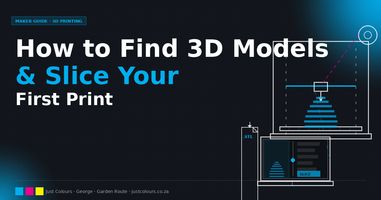
How to Find 3D Models and Slice Your First Print — A Beginner's Guide

You have your printer set up and filament loaded — now what? The next step trips up most beginners: where do you get the 3D files, and how do you turn them into something your printer can actually run? This guide walks you through the whole process — from finding free models online to sending your first job to the printer.

Where to Find Free 3D Models to Print

One of the most common questions from new 3D printer owners is where to find things to print. The good news is thousands of designers share their models for free online.

Thingiverse (thingiverse.com) is the largest repository of free 3D printable files, with millions of designs covering everything from phone stands to architectural models. Start here.

Printables (printables.com) is run by Prusa and is rapidly becoming the preferred alternative. Quality control is higher and the community is very active.

MyMiniFactory (myminifactory.com) focuses on quality-tested prints. Every design has been test-printed before listing, so you know it will work.

Search tips: Be specific. Try "phone stand Ender 3" rather than just "phone stand". Filter by Makes — designs with many successful makes from other users are almost always reliable.

File formats: Most designs download as .STL or .3MF files. Both work with Creality Print. .3MF is newer and can include colour information and print settings.

What Is an STL File — and Why Does It Matter?

When you download a design from Thingiverse or Printables, you will almost always get a .STL file. An STL file is a 3D mesh — a description of the object's surface made up of thousands of tiny triangles. It contains the shape only, with no printing instructions. Speed, temperature, layer height — all of that gets decided in the slicer.

STL files cannot be edited easily — they are finished meshes, not design files. If you need to modify a design you need the original CAD file. Some tools like Meshmixer or Tinkercad can do basic edits.

Watch for file errors: some STLs have mesh errors — gaps or inverted surfaces. Your slicer will usually warn you. Tools like Meshmixer's Make Solid function or the free Netfabb service can repair broken files.

What about .3MF? This is the modern replacement for STL. It stores the shape plus colour, scale, orientation and sometimes slicer settings too. Choose .3MF over STL when available — Creality Print supports both.

What Is a Slicer — and Why You Need One?

A slicer converts your 3D model file into instructions the printer can follow — layer by layer, move by move. This output is called G-code. Without a slicer, your printer cannot do anything with a model file.

Creality Print is free, pre-configured for all Creality machines, and the slicer we recommend. Download it at creality.com/pages/download. When you install it, select your printer model and it loads sensible defaults automatically.

Key settings to understand: Layer height — 0.2mm is the best balance for most prints (thinner is smoother but slower, thicker is faster but more stepped). Infill — controls how solid the inside is; 15-20% for decorative items, 40% or more for structural parts. Supports — enables temporary structures under overhangs steeper than 45 degrees; Creality Print adds them automatically when turned on. Print speed — start at 150mm/s while learning. Brim — adds a flat ring around the base to help adhesion on tall or thin prints.

Once your settings are ready, click Slice. Use the layer preview slider to check every layer before printing — you will catch problems before wasting filament. Then export to SD card or transfer via Wi-Fi.

Your First Print — A Step-by-Step Walkthrough

We will use a phone stand as the example — a simple, practical print that takes about two hours.

Step 1: Go to thingiverse.com, search "phone stand", filter by Most Makes, download the STL.

Step 2: Open Creality Print, click the folder icon, select the file. Rotate it so the flat base faces down.

Step 3: Set your printer, filament type (PLA), layer height 0.2mm, infill 20%, no supports needed for a phone stand. Add a brim if the base is small.

Step 4: Click Slice, then use the layer preview slider to check every layer looks correct.

Step 5: Export to SD card or send via Wi-Fi. On the printer touchscreen, navigate to Print, find your file and press start.

Step 6: Watch the first layer — it should look slightly squished against the bed. If it is rounded (too far) or dragging (too close), stop and adjust the Z-offset.

Step 7: Once done, wait for the bed to cool below 40C, then flex it slightly to release the print. Remove any brim with a flat tool.


That is your first print done.
Getting Better Results — Tips from Our George Store

Dry your filament — Garden Route humidity is real. Even sealed PLA absorbs moisture over time. Wet filament causes stringing, rough surfaces and brittle prints. Dry PLA at 45-50C for 4-6 hours before any critical print. We stock filament dryers in-store. Check your Z-offset even with auto-levelling — the Ender 3 V3 KE auto-levels well but the overall height still needs to be correct. The first layer should look slightly squished, not rounded on top. Print slower for quality parts — drop to 100-120mm/s and reduce outer wall speed to 60-80mm/s. The surface quality difference is significant. Always preview before printing — scrub through every layer in Creality Print before sending the file. Watch the first layer live — never start a print and walk away. If filament is not sticking, stop and clean the bed with isopropyl alcohol. Keep the print area draft-free — a fan or air conditioner blowing across the printer will cause warping, especially on ABS. Save your profiles — once you have settings that work for your filament brand, save them in Creality Print with a descriptive name like "SA Filament Hyper PLA 0.2mm".

About Just Colours — Your Local George 3D Printing Store

Just Colours is based at Shop 9, York Street Boulevard Shopping Centre in George. We are the Garden Route's local Creality stockist — selling printers, filament, accessories and craft supplies to makers, hobbyists, schools and small businesses across George, Knysna, Mossel Bay, Oudtshoorn and the whole Garden Route.


We stock the full Creality Ender, K Series and SPARKX range, plus PLA, PETG, ABS, TPU, Silk, Hyper PLA and specialty filaments from Creality, SA Filament, eSun and Filx . We also stock filament dryers, nozzles, print surfaces and accessories to keep your printer running well.


If you are stuck — first layer not sticking, stringing you cannot fix, a slicer setting you do not understand — come in or give us a call. Our team has hands-on experience with every machine we sell.


Browse 3D printers: here

Browse filament: here

Browse accessories: here


Phone: 044 873 2899 | Email: info@justcolours.co.za Hours: Mon–Fri 08:30–17:30 | Sat 08:30–13:00


Let’s create what matters — together.

Just Colours Team

More Posts

PLA vs PETG vs ABS — Which Filament Should You Use?PLA vs PETG vs ABS — Which Filament Should You Use?
PLA vs PETG vs ABS — Which Filament Should You Use?

You've got your 3D printer set up and you're ready to print — then you open the filament options and see PLA, PETG, ABS, Hyper PLA, Silk, TPU... and your head starts spinning. Don't worry. For most home printing, the choice comes down to three materials. Here's the plain-language breakdown of each one, when to use it, and which to pick up first.

<p>3D Printing in George: Getting Started with Creality in South Africa</p><p>3D Printing in George: Getting Started with Creality in South Africa</p>

3D Printing in George: Getting Started with Creality in South Africa

Just Colours Team